

Prerequisites
- An active Zapier account.
- An active API key from Connect-CRM. You can find out how to create an API key in the Rest API documentation.
Steps to Connect-CRM with Zapier
- Sign in to your Zapier account at zapier.com.
- In Zapier, click on Create > Zap to start creating a new workflow.
- Choose Connect-CRM as the app to connect. You can search for it in the search bar.
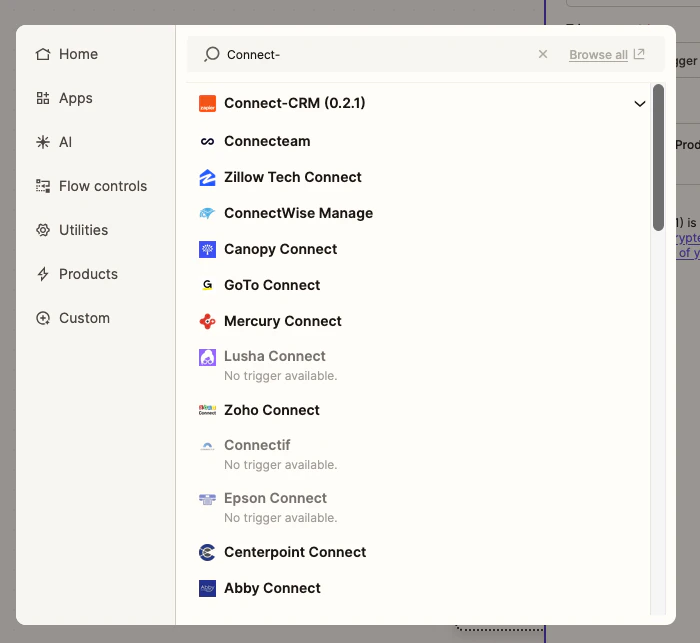
- Select the desired trigger event from Connect-CRM (e.g., “Record Event Trigger”) and click Continue.
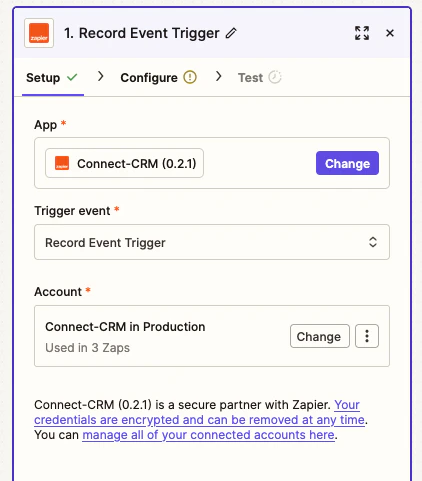
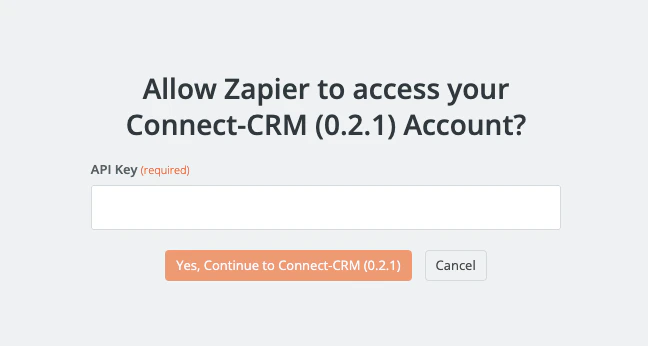
- To use your connect-CRM account, you will need to give Zapier access using your API key. Click on Connect a new account and enter your Connect-CRM API key when prompted and click Yes, Continue.
- Click Continue.
- On the next screen, set up the trigger by selecting the desired options (e.g., Record Name, Operation) and click Continue.
- Test the trigger to ensure it’s working correctly by clicking on Test trigger.
- If all goes well, you should see a success message. Click Continue to proceed.
What the trigger delivers
Each event is delivered as a JSON body containing the record’sid, its object
type, the event name ({object}.{operation}, for example deals.updated),
your workspaceId, a timestamp, and the record’s attributes.
Updated events carry last-known state, not a diff. The payload describes
what the record looks like at the moment we deliver the webhook — not the
specific change that fired it. It does not tell you which fields changed, and
it does not include their previous values.One practical consequence: several updates to the same record in quick
succession deliver one webhook each, and every one of them carries the same
final state. If your Zap needs to react to a particular field changing, compare
against a value you have stored yourself rather than expecting the payload to
describe the change.
deleted events are the one exception to the shape above. The record no longer
exists by the time the webhook is sent, so its attributes are delivered as an
empty object {} — id and type are still present and are what you should
key your Zap on.