> ## Documentation Index
> Fetch the complete documentation index at: https://docs.connect-crm.com/llms.txt
> Use this file to discover all available pages before exploring further.
# Microsoft
> Get started with connecting the message platforms from Microsoft in Connect-CRM.
## Outlook
### Prerequisites
To connect your Outlook account to Connect-CRM, you need the following:
* A Microsoft 365 business account with access to Outlook.
### Steps to Connect Outlook
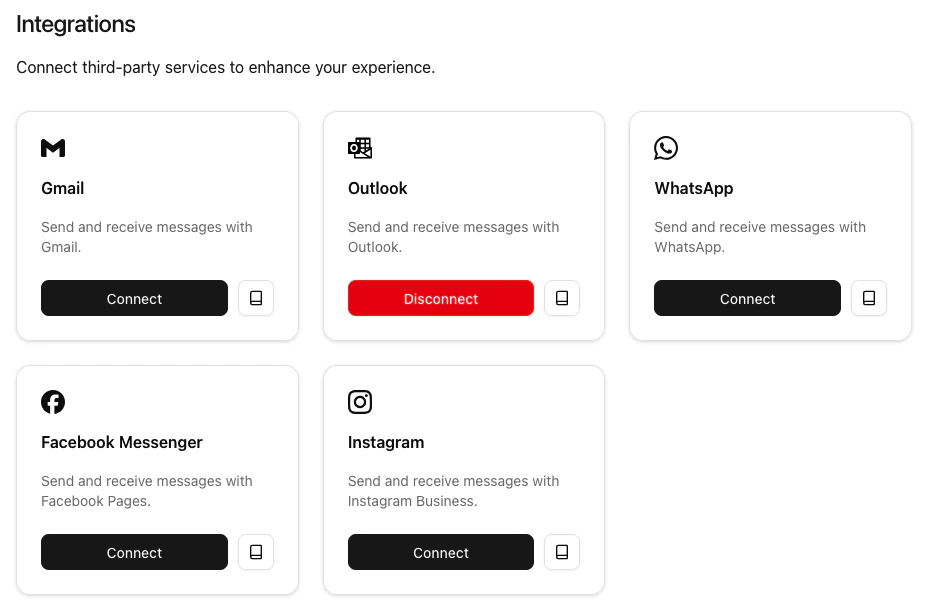
1. First navigate to the Integrations section in Connect-CRM. You can find this in the main menu under **Settings > Connect and manage integrations**.
2. In the Integrations section, look for the **Outlook** integration and click on **Connect**.
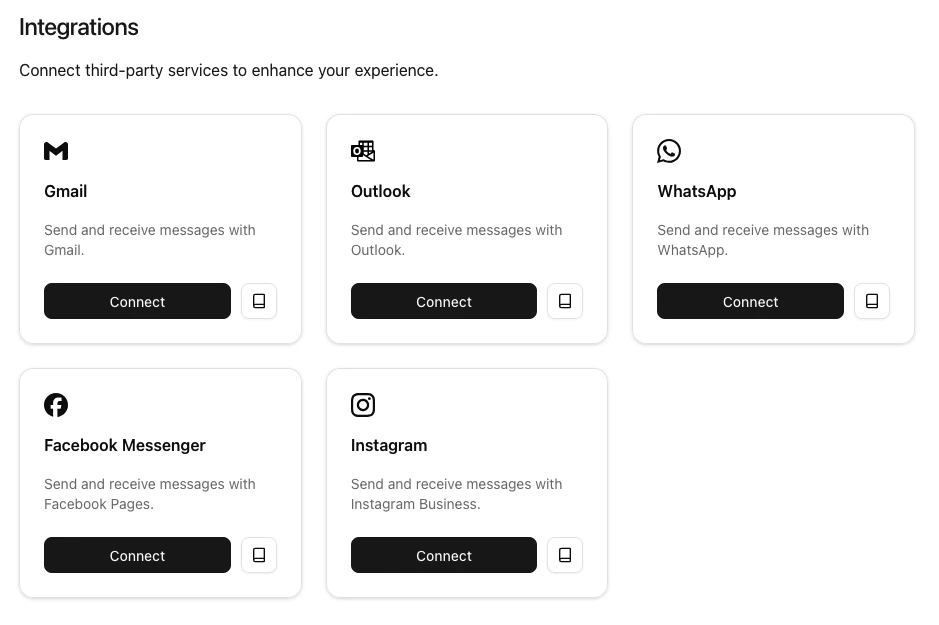 3. You will be redirected to the Microsoft authorization page. Log in with your Microsoft account credentials.
4. Once authorized, you will be redirected back to Connect-CRM, and your Outlook account will be connected.
3. You will be redirected to the Microsoft authorization page. Log in with your Microsoft account credentials.
4. Once authorized, you will be redirected back to Connect-CRM, and your Outlook account will be connected.