> ## Documentation Index
> Fetch the complete documentation index at: https://docs.connect-crm.com/llms.txt
> Use this file to discover all available pages before exploring further.
# Google
> Get started with connecting the message platforms from Google in Connect-CRM.
## Gmail
### Prerequisites
To connect your Gmail account to Connect-CRM, you need the following:
* A Google account with access to Google Workspace.
### Steps to Connect Gmail
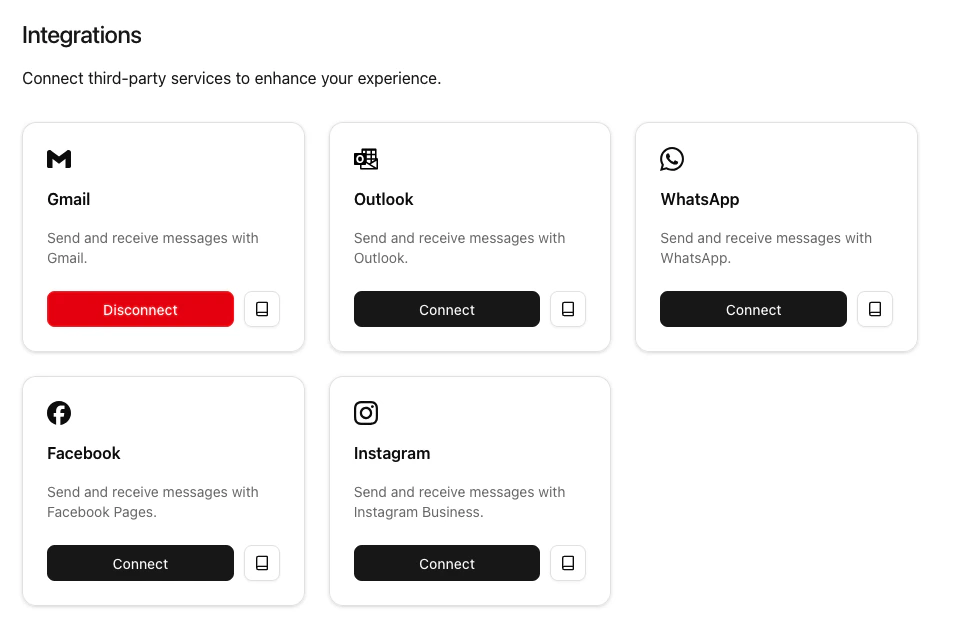
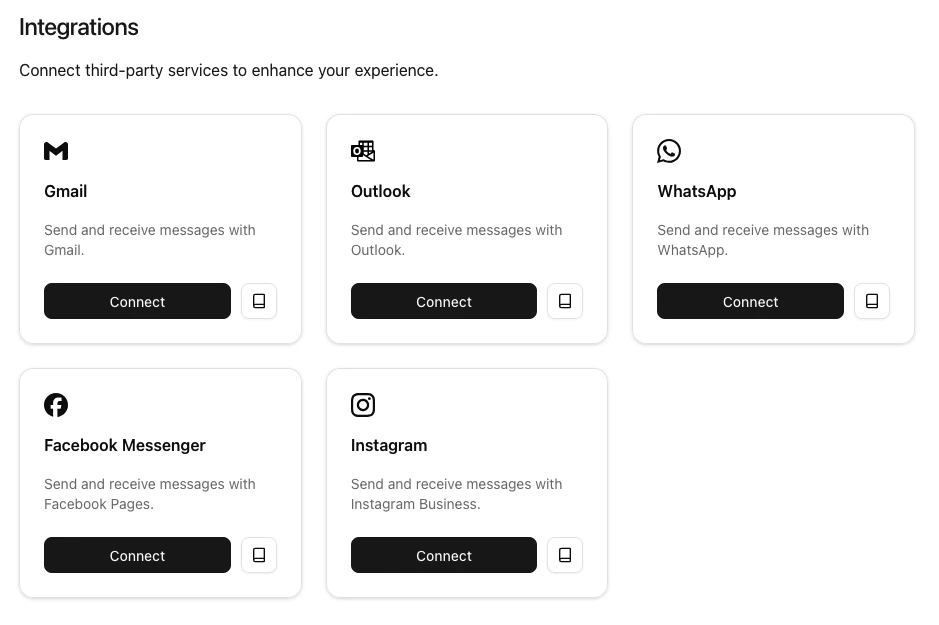
1. First navigate to the Integrations section in Connect-CRM. You can find this in the main menu under **Settings > Connect and manage integrations**.
2. In the Integrations section, look for the **Google** integration and click on **Connect**.
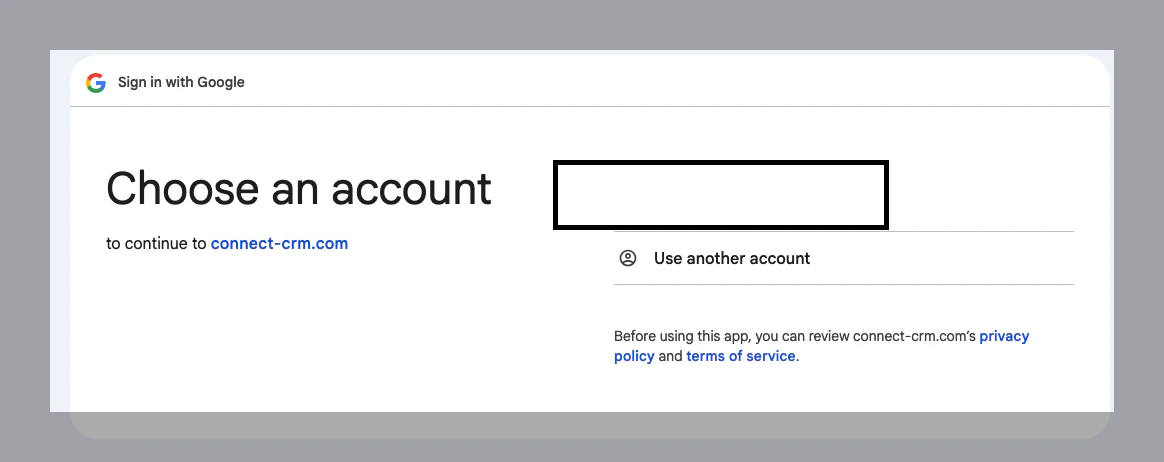
 3. You will be redirected to the Google authorization page. Log in with your Google account credentials.
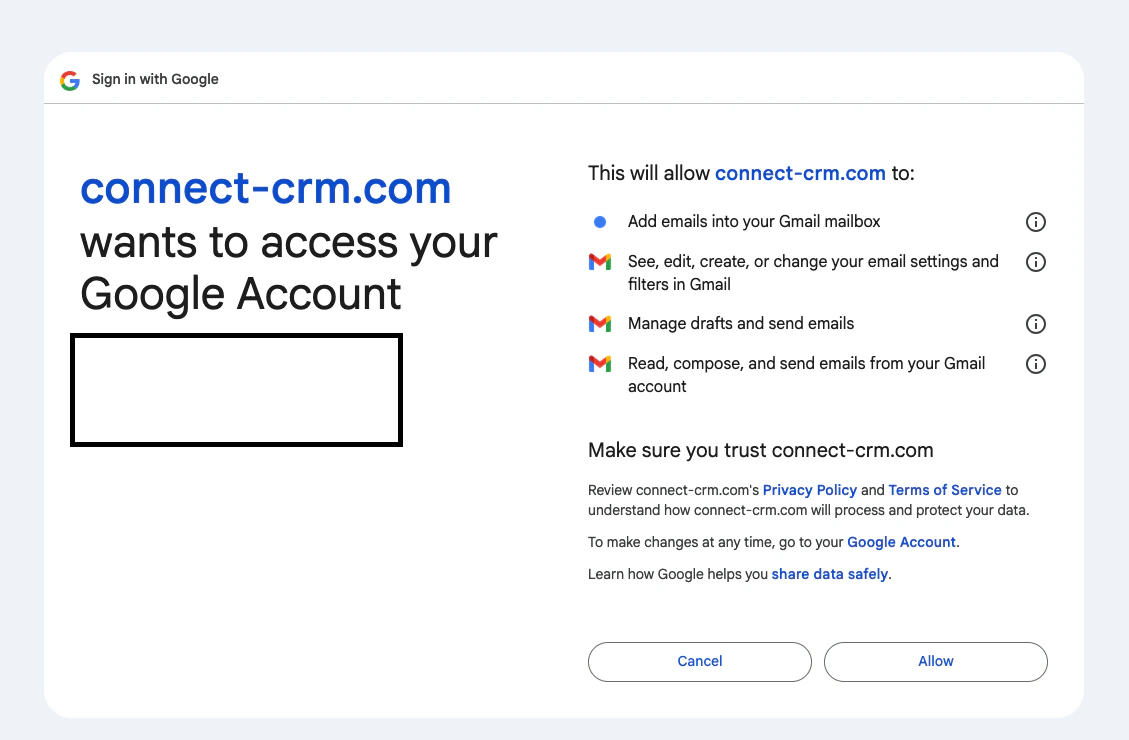
 4. Review the permissions requested by Connect-CRM and click **Allow** to grant access.
 5. Once authorized, you will be redirected back to Connect-CRM, and your Gmail account will be connected.