> ## Documentation Index
> Fetch the complete documentation index at: https://docs.connect-crm.com/llms.txt
> Use this file to discover all available pages before exploring further.
# Authentication
> How to generate access tokens and authenticate request to our Rest API.
## Access Tokens
### How to create an API Key
To interact with the Connect-CRM REST API, you need to generate an API key from your Connect-CRM account. Follow these steps:
1. First navigate to the Security and Access section in Connect-CRM. You can find it under **Settings > Security and Access**.
2. In the Security and Access section, look for the **Create API Key** button and click on it.
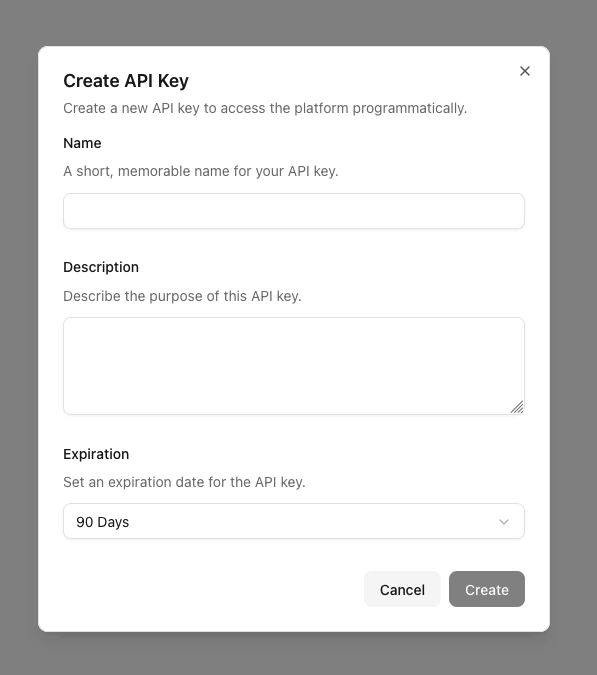 1. Fill in the required details in the dialog that appear. And click **Create**.
2. Once created, make sure to copy and securely store your API key.
For security reasons, the API key will only be shown once at the time of
creation. If you lose it, you will need to create a new one.
### Using the API Key
To authenticate your requests to the Connect-CRM REST API, include the API key in the `Authorization` header of your HTTP requests.
Authorization: Bearer YOUR\_API\_KEY
1. Fill in the required details in the dialog that appear. And click **Create**.
2. Once created, make sure to copy and securely store your API key.
For security reasons, the API key will only be shown once at the time of
creation. If you lose it, you will need to create a new one.
### Using the API Key
To authenticate your requests to the Connect-CRM REST API, include the API key in the `Authorization` header of your HTTP requests.
Authorization: Bearer YOUR\_API\_KEY